


could one of your programmers or devs help me? all of a sudden your game refuses to load into the main menu. I've tried running it on 2 different computers but oddly enough the problem persisted even on a different computer that had never had SE installed before. everything says it's running but it's not showing on the taskbar, not displaying any cpu activity on task manager, it just sits there. both computers I've tried have windows 11 pro and similar hardware. both gpus I've tested with are nvidia RTX 2080s. I've tested with as much as 64gb ram and it didn't make a difference. I've tried everything from simple steps all the way to fresh install but the problem is still there. I've updated the gpu drivers to latest but that only gave me one successful load in before the problem came right back again. please see my attached log file for what good it will do but maybe you'll find something that myself or others have missed. it was working just fine 2 nights ago and then microsoft updated my computer and SE hasn't worked reliably since. however, this seems to be the only game affected as I can load other games with no problems. it's just SE that goes funky when I try to load it to the main menu. it doesn't even make it past the window creation step (no splash screen/music). if you need more details, I can send you specs on both computers if I haven't provided enough details. I have played for 39 hours before this issue became an issue AND have also sunk about $200CAD into your game and dlcs so I'd like it if you are able to help me get it working again so that it' s not a waste of all that money. we are on disability so that was a LOT of money for us to spend! please help asap
Hello,
Since yesterday I started having issues running SE. The game launches as expected when Win11 has been restarted, but if the game has been closed it will only start up again as a background proccess. No error messages, just a background proccess in task manager. Only after another full system restart will the game launch propperly (one time).
Additionally I get an error when I save a world, saying it has no access to the save location. However the changes are actually saved. Deleting a blueprint instantly crashes the game.
I have attempted a clean re-install of SE.
- Made backups of blueprints and save files
- Unsubscribed form workshop mods and scripts
- Uninstalled SE via Steam
- Deleted remaining files in Steamapps/Common and AppData/Roaming
- Restarted the pc
- Reinstalled SE via Steam
- Restarted PC because game would not load
- Found that the config SpaceEngineers.cfg did not install
- Ran Steam file integrity verification (no change)
- Installed SE on laptop to get a fresh .cfg file
- Copied .cfg file to the PC and corrected the screen resolution data
- Restarted the PC
- Started SE, loaded a fresh word and made a BP
- Placed back the backup BPs and World saves
I have also have made other attempts to find a fix
- Ran SE as administrator (No luck, only runs as background task)
- Updated Nvidia Drivers
- Ran Windows Updates
- Used the .Net fixing tool
- Uninstalled EasyAntiCheat (allong with Sea of Thieves)
- Turned off Windows Core Isolation features (and turned them back on when it didn't help)
- Edit: I also turned off Nvidia/ Steam and Discord overlays
The issues keep persisting as discribed above.
I have attached 2 log files. One is when the game does launch after a restart, and the other when I try to run SE a second time, but it only launches as a background task.
I don't know what else to do in this case. I love Space Engineers and have played it for 1800 hours without issues.
Merged Objects
My Space Engineers game will not launch
Hello Keen support team, I hope this finds you well. About 2 days ago while I was playing Space Engineers, my game suddenly booted me to my home desktop screen. I tried to load the game again and was able to launch the game and tried loading the world I was previously playing on and when the loading screen reached 100% the game booted me back to my home desktop screen again. Now, when I try to launch the game, it says on steam that the game is running, but no tab appears for Space Engineers that shows the game is actually open. I have tried virtually everything under the sun to get the game working again, and on two occasions while deleting files, fixing GPU and other things, the game did manage to launch twice for me, and when I loaded a new world and gave mod.io consent and left the world to the home screen on space engineers, then exited to windows, I try to load the game again and find myself having the same issues of the game saying its running on steam, but does not have a tab open for the game. I have also uninstalled and reinstalled the game twice to no avail. I would love to have some help with this as I have run out of all options on what to do.
Thank you for your time
Sincerely: Shadow
The game wont start on Steam.
Since yesterday I installed the game and tried to play it. I hadn’t played it since last year, but the game won’t open at all. I verified the files, checked the drivers, and the Windows updates, and still nothing worked. Here is the log—please help me fix this. Please!!!!
Space Engineers only runs in the background on PC (Steam)
SE was running well. I added in some DLC's and Automatic LCDs from the Steam Workshop. Those worked worked as expected. A few days later on April 15 I wanted to load Toolbar Manager (doing some automation work using timers and the toolbar - note I'm not on the C sharp learning curve yet...). To do that I installed Pulsar, and so it could load Toolbar Manager from GitHub. This also loaded and worked. Pulsar got launched each time I ran SE. During this period the PC got restared several times.
At some point late on April 15 launching SE did not work as it always launched SE into a background process in windows. Considering that this might have been caused by Pulsar, Toolbar Manager, DLC's or Automatic LCD's, I removed all of them (including all references to Pulsar and the pulsar launch string in Steam), to no effect.
I then backed up my games saves, blueprints and the .cfg file and then uninstalled SE on steam. I then deleted all references to SE by deleting A:\SteamLibrary\steamapps\common\SpaceEngineers and C:\Users\Admin\AppData\Roaming\SpaceEngineers.
I then re-installed SE on Steam. This however didn't fix the problem as SE still ran in the Background (with all the ).
Looked at the log file and it indicated that there was no config file, so I copied the old config file into C:\Users\Admin\AppData\Roaming\SpaceEngineers, and relaunched SE. The log file then showed that the config file was used, but SE still ran in the background.
Finally, repeated the entire sequence of uninstalling SE followed by uninstalling steam, then reloading steam, installing SE, and copying the confg file. This also did not resolve the problem.
Finally, I tried a reboot of the PC, which also had not effect.
I note that Windows 11 did install two security updates on April 15, which probably got done during one of the restarts. I can't remember the exact sequence of events (updates duriing reboots seemingly normal...). The two updates were:
- 2026-04 Security Update (KB5083769) (26200.8246)
- 2026-04 .NET Framework Security Update (KB5082417)
The windows version most recently on March 25, 2026 was:
- Windows 11, version 25H2 (repair version)
So, I'm at a bit of a loss as to how to proceed to get SE working again... I'm in withdrawl, as I was just about to finish my mobile mining rig...
I'd be grateful for any assistance you can provide to help me get SE running again.
I didn't see anything like an error in the log files, but if you need anything, please just ask and I'll send it.
David Schenkel...
SE 1 Won't launch unless I restart my PC
I have done all the following: reinstalled, deleted shadercache, deleted .cfg, tried administrator for steam launch, updated gpu drivers. The only time the game will launch is after a restart the game will launch, however if I close the game and try to launch (without restarting) SE won't load.
Space Engineers won't start/runs in background
Good day,
Space Engineers will no longer start for me. It looks like a config file is not generating on game launch. I've tried all the usual troubleshooting steps including fresh install. I heard the issues could be related to a recent .Net framework update for windows 11. Hopefully someone can help with a solution for this issue. Below is my log file for reference. Thank you.
2026-04-19 14:22:22.689 - Thread: 1 -> Log Started
2026-04-19 14:22:22.689 - Thread: 1 -> Timezone (local - UTC): -7h
2026-04-19 14:22:22.689 - Thread: 1 -> App Version: 01_208_015
2026-04-19 14:22:22.714 - Thread: 1 -> Is official: True [NO][IS][NAMP]
2026-04-19 14:22:22.714 - Thread: 1 -> Branch / Sandbox: SVN
2026-04-19 14:22:22.714 - Thread: 1 -> Client Build Number: 4
2026-04-19 14:22:22.714 - Thread: 1 -> Server Build Number: 4
2026-04-19 14:22:22.714 - Thread: 1 -> Environment.ProcessorCount: 8
2026-04-19 14:22:22.738 - Thread: 1 -> Environment.OSVersion: Microsoft Windows 11 Pro (Microsoft Windows NT 10.0.26200.0)
2026-04-19 14:22:22.739 - Thread: 1 -> Environment.CommandLine: "C:\Program Files (x86)\Steam\steamapps\common\SpaceEngineers\Bin64\SpaceEngineers.exe"
2026-04-19 14:22:22.739 - Thread: 1 -> Environment.Is64BitProcess: True
2026-04-19 14:22:22.739 - Thread: 1 -> Environment.Is64BitOperatingSystem: True
2026-04-19 14:22:22.739 - Thread: 1 -> Environment.Version: .NET Framework 4.8.9325.0
2026-04-19 14:22:22.739 - Thread: 1 -> Environment.CurrentDirectory: C:\Program Files (x86)\Steam\steamapps\common\SpaceEngineers\Bin64
2026-04-19 14:22:22.741 - Thread: 1 -> CPU Info: AMD Ryzen 7 7800X3D 8-Core Processor
2026-04-19 14:22:22.741 - Thread: 1 -> Default Culture:
2026-04-19 14:22:22.741 - Thread: 1 -> Default UI Culture:
2026-04-19 14:22:22.743 - Thread: 1 -> MyConfig.Load() - START
2026-04-19 14:22:22.744 - Thread: 1 -> Path: C:\Users\Brenden\AppData\Roaming\SpaceEngineers\SpaceEngineers.cfg
2026-04-19 14:22:22.744 - Thread: 1 -> Config file not found! C:\Users\Brenden\AppData\Roaming\SpaceEngineers\SpaceEngineers.cfg
2026-04-19 14:22:22.745 - Thread: 1 -> NewNewGameScreen: False
2026-04-19 14:22:22.745 - Thread: 1 -> MyConfig.Load() - END
Space Engineers no longer launches after latest update (process runs, no window appears)
Hello,
I would like to report a launch issue that started immediately after the latest Space Engineers update.
System:
Windows 11 Home, build 26200
Laptop platform with hybrid graphics (AMD iGPU + NVIDIA RTX 4050 dGPU)
Steam version of Space Engineers
Problem Description:
After clicking Play in Steam, Steam changes status to “Running”
SpaceEngineers.exe process appears in Task Manager
No game window opens
No splash screen appears
Process remains running in background
The game was working before the recent update.
Logs / Behavior
Space Engineers log ends shortly after config load, around:
MyConfig.Load() - END
Troubleshooting already attempted
Verify integrity of game files
Full restart of PC
Launch as administrator
Launch directly from Bin64\SpaceEngineers.exe
Delete/reset AppData Space Engineers config folder
Compatibility mode
Safe mode / launch parameters
Disable Steam overlay
Force NVIDIA GPU
Disable integrated GPU test
Reinstall / runtime checks
None of these changed behavior.
Game won't start, only runs in the background
I have tried:
Reinstalling the game.
Verifying game files
Running steam as administrator
Removing all DLC's
c++ reinstall and repair
Waiting more then 10 min for the game to launch.
Clearing all files in %appdata%Roaming\SpaceEngineers
Tried putting that -skip cutscene command into the launch option in the hope that might do something
Game won't start a second time with out pc restart
Hello.
One a fresh boot of my computer, the game starts normally, however, after I exit the game, and try to start SE again, the game stops responding before display the Space Engineers card.
The last line in the log file off the failed starts is "MyConfig.Load() - END"
The log file of the first start up after a reboot follows the above line with "SpaceEngineersGame.SetupAnalytics - START"
I've reinstalled the game and tried several other fixes to no effect.
I've attached both a successful game start log file and an unsuccessful log.
Game doesn't start
Hi! My game won't launch - it hangs in the task manager without any load, there is no game window.. I tried fixing it with GPT Chat, but it didn't work. I tried changing configuration files and reinstalling all sorts of drivers. I managed to launch it once, but then it turned out I didn't have the APPDATA and LOCALOWDATA variables in Windows. The game launched. Then, in my joy, I installed mods, but everything broke again. The variables were still there. I deleted the entire game and saves again, but it didn't help. How can I fix this?
P.s. - Sorry for my bad language...
Space Engineers will not shut down correctly. Cannot relaunch afterwards
I cannot launch the game after having a session previously without rebooting. Tried multiple games on steam and they don't have this issue. Began about two or three weeks ago. I initially thought it was a problem with Windows hibernation, after reinstalling Windows and encountering again did I do more troubleshooting. TLDR get error that Space Engineers is already running when launching. Kill the process and try again doesn't work.
Game wont start, Steam
i re-installed countless times
uninstalled DLC and deleted the mods folder for SC
deleted shaders folder
got my friends config file
deleted the entire folder in roaming
did a reinstall repair of the files using -NetFxRepairTool- & -VC_redist.x64-
ran steam as admin
ran SC as admin
disabling cloud in steam
disabling steam and discord overlay
im at a loss, i have over 4,000 hrs in this game, i love it. but this hurts. i remember having a issue like this before but im not usre how it fixed itself, its been doing this for a week or so. please help
Game launches on background
Hey,
It seems like I can launch game right after restarting my pc, but if I wait a bit, SE is stuck as a background process. SpaceEngineersGame.SetupAnalytics doesn't even try to start.
I've tried reinstaling .NET and the game itself (per other users on this forum) and comparing config files to my friend (for whom it works fine) and nothing helped.
Could you direct me on what to try next? Thanks for any help
Edit 1: I just found this thread and log file from the user is similar to mine (but my game launches right after a pc restart)
Game does not launch
Game fails to load.
I looked in Task Manager, and I see SpaceEngineers in processes section.
deleted cache.
deleted config
deleted spaceengineers.cfg.
verified game files.
updated graphics driver. Even though game worked prior.
windows up to date.
I ran Latest supported v14 (for Visual Studio 2017–2026).
uninstalled, deleted SpaceEningeers inside %appdata%, reinstalled the game.
Game wont launch
Hello, i came to ya with very annoying problem .
I bought game yeasterday and it wont launch , steam shows that its turned on but i dont get window with game .
i tried reinstalling and deleting those 2 windows security updates , and it doesnt work .
I play on laptop its asus v16
SO please help me :) .
Game wont run after launching
Hi there,
I’m having trouble running Space Engineers, on steam it says running but wont open. On Task manger it shows as using 18.4MB memory, but no CPU.
I have tried all the methods mentioned below:
- Restarted Laptop
- Checked File integrity on steam
- Deleted Space engineers folder in %App Data%
- Checked and reinstalled graphics card drivers
- Reinstalled MS .NET
- Reinstalled DX 11 files
- Reinstalled VC redist
- Reinstalled Space Engineers
- Tried running it on 144 FPS
- Tried it on 60 FPS
- Added Space Engineers on firewall and antivirus bypass.
- Ran as Admin.
I’m running it on Gaming laptop with
- CPU: AMD Ryzen 5 5600H
- GPU: NVIDIA GeForce RTX 3050 Laptop GPU
- RAM: 32 GB SODIMM
The log is below:
2026-05-01 02:51:24.969 - Thread: 1 -> Log Started
2026-05-01 02:51:24.969 - Thread: 1 -> Timezone (local - UTC): 1h
2026-05-01 02:51:24.969 - Thread: 1 -> App Version: 01_208_015
2026-05-01 02:51:24.985 - Thread: 1 -> Is official: True [NO][IS][NAMP]
2026-05-01 02:51:24.985 - Thread: 1 -> Branch / Sandbox: SVN
2026-05-01 02:51:24.985 - Thread: 1 -> Client Build Number: 4
2026-05-01 02:51:24.985 - Thread: 1 -> Server Build Number: 4
2026-05-01 02:51:24.985 - Thread: 1 -> Environment.ProcessorCount: 12
2026-05-01 02:51:25.135 - Thread: 1 -> Environment.OSVersion: Microsoft Windows 11 Pro (Microsoft Windows NT 10.0.26100.0)
2026-05-01 02:51:25.135 - Thread: 1 -> Environment.CommandLine: D:\SteamLibrary\steamapps\common\SpaceEngineers\Bin64\SpaceEngineers.exe
2026-05-01 02:51:25.135 - Thread: 1 -> Environment.Is64BitProcess: True
2026-05-01 02:51:25.135 - Thread: 1 -> Environment.Is64BitOperatingSystem: True
2026-05-01 02:51:25.135 - Thread: 1 -> Environment.Version: .NET Framework 4.8.9324.0
2026-05-01 02:51:25.135 - Thread: 1 -> Environment.CurrentDirectory: D:\SteamLibrary\steamapps\common\SpaceEngineers\Bin64
2026-05-01 02:51:25.142 - Thread: 1 -> CPU Info: AMD Ryzen 5 5600H with Radeon Graphics
2026-05-01 02:51:25.142 - Thread: 1 -> Default Culture:
2026-05-01 02:51:25.142 - Thread: 1 -> Default UI Culture:
2026-05-01 02:51:25.142 - Thread: 1 -> MyConfig.Load() - START
2026-05-01 02:51:25.144 - Thread: 1 -> Path: C:\Users\laptop\AppData\Roaming\SpaceEngineers\SpaceEngineers.cfg
2026-05-01 02:51:25.302 - Thread: 1 -> AmbientOcclusionEnabled: True
2026-05-01 02:51:25.302 - Thread: 1 -> AnisotropicFiltering: 4
2026-05-01 02:51:25.302 - Thread: 1 -> AntialiasingMode: 1
2026-05-01 02:51:25.302 - Thread: 1 -> AreaInteraction: True
2026-05-01 02:51:25.302 - Thread: 1 -> BlueprintSharing: True
2026-05-01 02:51:25.302 - Thread: 1 -> ControllerDefaultOnStart: False
2026-05-01 02:51:25.302 - Thread: 1 -> ControlsButtons: VRage.Serialization.SerializableDictionary`2[System.String,VRage.Serialization.SerializableDictionary`2[System.String,System.String]]
2026-05-01 02:51:25.302 - Thread: 1 -> ControlsGeneral: VRage.Serialization.SerializableDictionary`2[System.String,System.String]
2026-05-01 02:51:25.302 - Thread: 1 -> ControlsHints: True
2026-05-01 02:51:25.302 - Thread: 1 -> CubeBuilderAlignToDefault: False
2026-05-01 02:51:25.302 - Thread: 1 -> CubeBuilderBuildingMode: 0
2026-05-01 02:51:25.302 - Thread: 1 -> DebugInputs: System.Xml.XmlNode[]
2026-05-01 02:51:25.302 - Thread: 1 -> EnableDamageEffects: True
2026-05-01 02:51:25.302 - Thread: 1 -> EnableDoppler: True
2026-05-01 02:51:25.302 - Thread: 1 -> EnableDynamicMusic: True
2026-05-01 02:51:25.302 - Thread: 1 -> EnableMuteWhenNotInFocus: True
2026-05-01 02:51:25.302 - Thread: 1 -> EnableReverb: False
2026-05-01 02:51:25.302 - Thread: 1 -> EnableSteamCloud: False
2026-05-01 02:51:25.302 - Thread: 1 -> EnableTrading: True
2026-05-01 02:51:25.302 - Thread: 1 -> ExperimentalMode: False
2026-05-01 02:51:25.302 - Thread: 1 -> FieldOfView: 70
2026-05-01 02:51:25.302 - Thread: 1 -> FirstTimeRun: False
2026-05-01 02:51:25.302 - Thread: 1 -> FirstVTTimeRun: False
2026-05-01 02:51:25.302 - Thread: 1 -> FlaresIntensity: 1
2026-05-01 02:51:25.302 - Thread: 1 -> GamepadScheme: 0
2026-05-01 02:51:25.302 - Thread: 1 -> GamepadSchemeName: Flight
2026-05-01 02:51:25.302 - Thread: 1 -> GameVolume: 0.05116917
2026-05-01 02:51:25.302 - Thread: 1 -> GDPRConsent: True
2026-05-01 02:51:25.302 - Thread: 1 -> GDPRConsentSentUpdated: True
2026-05-01 02:51:25.302 - Thread: 1 -> GoodBotHints: True
2026-05-01 02:51:25.302 - Thread: 1 -> GraphicsRenderer: DirectX 11
2026-05-01 02:51:25.302 - Thread: 1 -> GrassDensity: 3
2026-05-01 02:51:25.302 - Thread: 1 -> GrassDrawDistance: 1000
2026-05-01 02:51:25.302 - Thread: 1 -> HitIndicatorColorCharacter: 4289964437
2026-05-01 02:51:25.302 - Thread: 1 -> HitIndicatorColorFriend: 4284199525
2026-05-01 02:51:25.302 - Thread: 1 -> HitIndicatorColorGrid: 4294035829
2026-05-01 02:51:25.302 - Thread: 1 -> HitIndicatorColorHeadshot: 4280529896
2026-05-01 02:51:25.302 - Thread: 1 -> HitIndicatorColorKill: 4282269412
2026-05-01 02:51:25.302 - Thread: 1 -> HitIndicatorTextureCharacter: Textures\GUI\Indicators\HitIndicator4.png
2026-05-01 02:51:25.302 - Thread: 1 -> HitIndicatorTextureFriend: Textures\GUI\Indicators\HitIndicator4.png
2026-05-01 02:51:25.302 - Thread: 1 -> HitIndicatorTextureGrid: Textures\GUI\Indicators\HitIndicator4.png
2026-05-01 02:51:25.302 - Thread: 1 -> HitIndicatorTextureHeadshot: Textures\GUI\Indicators\HitIndicator4.png
2026-05-01 02:51:25.302 - Thread: 1 -> HitIndicatorTextureKill: Textures\GUI\Indicators\HitIndicator4.png
2026-05-01 02:51:25.302 - Thread: 1 -> HUDBkTransparency: 0.6
2026-05-01 02:51:25.302 - Thread: 1 -> HudState: 2
2026-05-01 02:51:25.302 - Thread: 1 -> HudWarnings: True
2026-05-01 02:51:25.302 - Thread: 1 -> IronSightSwitchState: 1
2026-05-01 02:51:25.302 - Thread: 1 -> Language: 0
2026-05-01 02:51:25.302 - Thread: 1 -> LastBannerId: 101
2026-05-01 02:51:25.302 - Thread: 1 -> LastNewsPopupDate: 12/09/2025 00:00:00
2026-05-01 02:51:25.302 - Thread: 1 -> LightsQuality: 2
2026-05-01 02:51:25.302 - Thread: 1 -> LowMemSwitchToLow: 0
2026-05-01 02:51:25.302 - Thread: 1 -> MicrophoneSensitivity: 0.5
2026-05-01 02:51:25.302 - Thread: 1 -> ModelQuality: 2
2026-05-01 02:51:25.302 - Thread: 1 -> Music_Volume: 0.09832081
2026-05-01 02:51:25.302 - Thread: 1 -> MuteBroadcastControllers: False
2026-05-01 02:51:25.302 - Thread: 1 -> MutedPlayers: [REDACTED]
2026-05-01 02:51:25.302 - Thread: 1 -> OnlyPSGames: False
2026-05-01 02:51:25.302 - Thread: 1 -> PostProcessingEnabled: True
2026-05-01 02:51:25.302 - Thread: 1 -> QuickStartNotification: False
2026-05-01 02:51:25.302 - Thread: 1 -> RefreshRate: 74973
2026-05-01 02:51:25.302 - Thread: 1 -> RotationHints: True
2026-05-01 02:51:25.302 - Thread: 1 -> ScreenHeight: 1080
2026-05-01 02:51:25.302 - Thread: 1 -> ScreenshotSizeMultiplier: 1
2026-05-01 02:51:25.302 - Thread: 1 -> ScreenWidth: 1920
2026-05-01 02:51:25.302 - Thread: 1 -> SelectedQuickStart: MyObjectBuilder_QuickStartDefinition/StarSystemSurvival
2026-05-01 02:51:25.302 - Thread: 1 -> SelectedScenarioCategory: D:\SteamLibrary\steamapps\common\SpaceEngineers\Content\CustomWorlds\Star System
2026-05-01 02:51:25.302 - Thread: 1 -> ShaderQuality: 2
2026-05-01 02:51:25.302 - Thread: 1 -> ShadowMapResolution: 2
2026-05-01 02:51:25.302 - Thread: 1 -> ShipSoundsAreBasedOnSpeed: True
2026-05-01 02:51:25.302 - Thread: 1 -> ShowCrosshair2: 0
2026-05-01 02:51:25.302 - Thread: 1 -> SpriteMainViewportScale: 1
2026-05-01 02:51:25.302 - Thread: 1 -> TextureQuality: 2
2026-05-01 02:51:25.302 - Thread: 1 -> TreeViewDistance: 2000
2026-05-01 02:51:25.302 - Thread: 1 -> UiBkTransparency: 0.8
2026-05-01 02:51:25.302 - Thread: 1 -> UiTransparency: 1
2026-05-01 02:51:25.302 - Thread: 1 -> VerticalSync: 1
2026-05-01 02:51:25.302 - Thread: 1 -> VideoAdapter: 0
2026-05-01 02:51:25.302 - Thread: 1 -> VoiceChat: True
2026-05-01 02:51:25.302 - Thread: 1 -> VoiceChatVoiceActivation: False
2026-05-01 02:51:25.302 - Thread: 1 -> VoiceChatVolume: 5
2026-05-01 02:51:25.302 - Thread: 1 -> VoxelQuality: 2
2026-05-01 02:51:25.302 - Thread: 1 -> VoxelTextureQuality: 2
2026-05-01 02:51:25.302 - Thread: 1 -> WelcomeScreenCurrentStatus: 1
2026-05-01 02:51:25.302 - Thread: 1 -> WindowMode: 2
2026-05-01 02:51:25.302 - Thread: 1 -> ZoomMultiplier: 0.2
2026-05-01 02:51:25.302 - Thread: 1 -> MyConfig.Load() - END
Game won't start
Game wont start after I've restarted pc, uninstalled and reinstalled it i can start it up but nothing loads. steam says its running but i get nothing opening. I've tried and looked up how to fix but still didn't get nothing.
Space Engineers Support
Hi,
I've recently bought Space engineers (1) through a key online and I cant seem to load the game at all when launching it on steam. It seems to run in the background of my PC and nothing loads at all. It just says "Running" in my library.. When I restart my computer it seems to work only if I launch the game as soon as my computer has loaded after the restart and if I close the game after I'm done it wont load again and I get the same issue. I have made sure my drivers are updates and everything else to do with the game and PC but still no change.
I was wondering if you could help or be able to point me in the right direction to get this resolved,
Many Thanks
SE appears to close incorrectly
Game will only launch after reboot.
I can play the game only after I reboot my computer. If I close the game and try to launch it, It will not start until I reboot my PC. I have tried closing steam via task manager closing anything related to steam. Relaunch steam and SE will still not launch.
Need to add that my last reboot it would not launch. I do run dual monitors.
------------------------------------------------------------------------------------------
OS NameMicrosoft Windows 11 Home
Version10.0.26200 Build 26200
Other OS Description Not Available
OS ManufacturerMicrosoft Corporation
System NameGAMINGPC
System ManufacturerGigabyte Technology Co., Ltd.
System ModelX299 AORUS Gaming 7
System Typex64-based PC
System SKUDefault string
ProcessorIntel(R) Core(TM) i9-10980XE CPU @ 3.00GHz, 3000 Mhz, 18 Core(s), 36 Logical Processor(s)
BIOS Version/DateAmerican Megatrends Inc. F9r, 12/6/2021
SMBIOS Version3.0
Embedded Controller Version255.255
BIOS ModeUEFI
BaseBoard ManufacturerGigabyte Technology Co., Ltd.
BaseBoard ProductX299 AORUS Gaming 7
BaseBoard VersionDefault string
Platform RoleDesktop
Secure Boot StateOn
PCR7 ConfigurationElevation Required to View
Windows DirectoryC:\WINDOWS
System DirectoryC:\WINDOWS\system32
Boot Device\Device\HarddiskVolume1
LocaleUnited States
Hardware Abstraction LayerVersion = "10.0.26100.1"
User NameGamingPC\intel
Time ZonePacific Daylight Time
Installed Physical Memory (RAM)64.0 GB
Total Physical Memory63.7 GB
Available Physical Memory53.9 GB
Total Virtual Memory72.7 GB
Available Virtual Memory61.1 GB
Page File Space9.00 GB
Page FileC:\pagefile.sys
Kernel DMA ProtectionOff
Virtualization-based securityRunning
Virtualization-based security Required Security PropertiesBase Virtualization Support
Virtualization-based security Available Security PropertiesBase Virtualization Support, Secure Boot, DMA Protection, SMM Security Mitigations 1.0, Mode Based Execution Control, APIC Virtualization
Virtualization-based security Services Configured
Virtualization-based security Services Running
App Control for Business policyEnforced
App Control for Business user mode policyOff
Automatic Device Encryption SupportElevation Required to View
A hypervisor has been detected. Features required for Hyper-V will not be displayed.
----------------------------------------------------------------------------------------
SE Log for last start up attempt
----------------------------------------------------------------------------------------
2026-05-05 19:46:19.488 - Thread: 1 -> Log Started
2026-05-05 19:46:19.490 - Thread: 1 -> Timezone (local - UTC): -7h
2026-05-05 19:46:19.490 - Thread: 1 -> App Version: 01_209_020
2026-05-05 19:46:19.509 - Thread: 1 -> Is official: True [NO][IS][NAMP]
2026-05-05 19:46:19.509 - Thread: 1 -> Branch / Sandbox: SVN
2026-05-05 19:46:19.509 - Thread: 1 -> Client Build Number: 1
2026-05-05 19:46:19.509 - Thread: 1 -> Server Build Number: 0
2026-05-05 19:46:19.509 - Thread: 1 -> Environment.ProcessorCount: 36
2026-05-05 19:46:19.593 - Thread: 1 -> Environment.OSVersion: Microsoft Windows 11 Home (Microsoft Windows NT 10.0.26200.0)
2026-05-05 19:46:19.593 - Thread: 1 -> Environment.CommandLine: "C:\Program Files (x86)\Steam\steamapps\common\SpaceEngineers\Bin64\SpaceEngineers.exe"
2026-05-05 19:46:19.593 - Thread: 1 -> Environment.Is64BitProcess: True
2026-05-05 19:46:19.593 - Thread: 1 -> Environment.Is64BitOperatingSystem: True
2026-05-05 19:46:19.594 - Thread: 1 -> Environment.Version: .NET Framework 4.8.9325.0
2026-05-05 19:46:19.594 - Thread: 1 -> Environment.CurrentDirectory: C:\Program Files (x86)\Steam\steamapps\common\SpaceEngineers\Bin64
2026-05-05 19:46:19.605 - Thread: 1 -> CPU Info: Intel(R) Core(TM) i9-10980XE CPU @ 3.00GHz
2026-05-05 19:46:19.606 - Thread: 1 -> Default Culture:
2026-05-05 19:46:19.606 - Thread: 1 -> Default UI Culture:
2026-05-05 19:46:19.606 - Thread: 1 -> MyConfig.Load() - START
2026-05-05 19:46:19.612 - Thread: 1 -> Path: C:\Users\intel\AppData\Roaming\SpaceEngineers\SpaceEngineers.cfg
2026-05-05 19:46:19.767 - Thread: 1 -> AmbientOcclusionEnabled: True
2026-05-05 19:46:19.767 - Thread: 1 -> AnisotropicFiltering: 4
2026-05-05 19:46:19.767 - Thread: 1 -> AntialiasingMode: 1
2026-05-05 19:46:19.767 - Thread: 1 -> AreaInteraction: True
2026-05-05 19:46:19.767 - Thread: 1 -> BlueprintSharing: True
2026-05-05 19:46:19.767 - Thread: 1 -> ControllerBindings: VRage.Serialization.SerializableDictionary`2[System.String,VRage.Serialization.SerializableDictionary`2[System.String,System.String]]
2026-05-05 19:46:19.767 - Thread: 1 -> ControllerDefaultOnStart: False
2026-05-05 19:46:19.767 - Thread: 1 -> ControlsButtons: VRage.Serialization.SerializableDictionary`2[System.String,VRage.Serialization.SerializableDictionary`2[System.String,System.String]]
2026-05-05 19:46:19.767 - Thread: 1 -> ControlsGeneral: VRage.Serialization.SerializableDictionary`2[System.String,System.String]
2026-05-05 19:46:19.767 - Thread: 1 -> ControlsHints: True
2026-05-05 19:46:19.767 - Thread: 1 -> CubeBuilderAlignToDefault: True
2026-05-05 19:46:19.767 - Thread: 1 -> CubeBuilderBuildingMode: 0
2026-05-05 19:46:19.767 - Thread: 1 -> CubeBuilderUseSymmetry: True
2026-05-05 19:46:19.767 - Thread: 1 -> DebugComponentsInfo: 1
2026-05-05 19:46:19.767 - Thread: 1 -> DebugInputs: System.Xml.XmlNode[]
2026-05-05 19:46:19.767 - Thread: 1 -> DisableUpdateDriverNotification: False
2026-05-05 19:46:19.767 - Thread: 1 -> EnableDamageEffects: True
2026-05-05 19:46:19.767 - Thread: 1 -> EnableDoppler: True
2026-05-05 19:46:19.767 - Thread: 1 -> EnableDynamicMusic: True
2026-05-05 19:46:19.767 - Thread: 1 -> EnableMuteWhenNotInFocus: True
2026-05-05 19:46:19.767 - Thread: 1 -> EnableReverb: False
2026-05-05 19:46:19.767 - Thread: 1 -> EnableSteamCloud: False
2026-05-05 19:46:19.767 - Thread: 1 -> EnableTrading: True
2026-05-05 19:46:19.768 - Thread: 1 -> ExperimentalMode: True
2026-05-05 19:46:19.768 - Thread: 1 -> FieldOfView: 70
2026-05-05 19:46:19.768 - Thread: 1 -> FirstTimeRun: False
2026-05-05 19:46:19.768 - Thread: 1 -> FirstTimeTutorials: False
2026-05-05 19:46:19.768 - Thread: 1 -> FirstVTTimeRun: False
2026-05-05 19:46:19.768 - Thread: 1 -> FlaresIntensity: 1
2026-05-05 19:46:19.768 - Thread: 1 -> GameVolume: 0
2026-05-05 19:46:19.768 - Thread: 1 -> GDPRConsent: True
2026-05-05 19:46:19.768 - Thread: 1 -> GDPRConsentSent: True
2026-05-05 19:46:19.768 - Thread: 1 -> GDPRConsentSentUpdated: True
2026-05-05 19:46:19.768 - Thread: 1 -> GoodBotHints: False
2026-05-05 19:46:19.768 - Thread: 1 -> GraphicsRenderer: DirectX 11
2026-05-05 19:46:19.768 - Thread: 1 -> GrassDensity: 4
2026-05-05 19:46:19.768 - Thread: 1 -> GrassDrawDistance: 1000
2026-05-05 19:46:19.768 - Thread: 1 -> HitIndicatorColorCharacter: 4289964437
2026-05-05 19:46:19.768 - Thread: 1 -> HitIndicatorColorFriend: 4284199525
2026-05-05 19:46:19.768 - Thread: 1 -> HitIndicatorColorGrid: 4294035829
2026-05-05 19:46:19.768 - Thread: 1 -> HitIndicatorColorHeadshot: 4280529896
2026-05-05 19:46:19.768 - Thread: 1 -> HitIndicatorColorKill: 4282269412
2026-05-05 19:46:19.768 - Thread: 1 -> HitIndicatorTextureCharacter: Textures\GUI\Indicators\HitIndicator4.png
2026-05-05 19:46:19.768 - Thread: 1 -> HitIndicatorTextureFriend: Textures\GUI\Indicators\HitIndicator4.png
2026-05-05 19:46:19.768 - Thread: 1 -> HitIndicatorTextureGrid: Textures\GUI\Indicators\HitIndicator4.png
2026-05-05 19:46:19.768 - Thread: 1 -> HitIndicatorTextureHeadshot: Textures\GUI\Indicators\HitIndicator4.png
2026-05-05 19:46:19.768 - Thread: 1 -> HitIndicatorTextureKill: Textures\GUI\Indicators\HitIndicator4.png
2026-05-05 19:46:19.768 - Thread: 1 -> HUDBkTransparency: 0.6
2026-05-05 19:46:19.768 - Thread: 1 -> HudState: 2
2026-05-05 19:46:19.768 - Thread: 1 -> HudWarnings: True
2026-05-05 19:46:19.768 - Thread: 1 -> IronSightSwitchState: 1
2026-05-05 19:46:19.768 - Thread: 1 -> Language: 0
2026-05-05 19:46:19.768 - Thread: 1 -> LastBannerId: 101
2026-05-05 19:46:19.768 - Thread: 1 -> LastCheckedVersion: 1206030
2026-05-05 19:46:19.768 - Thread: 1 -> LastNewsPopupDate: 04/05/2025 00:00:00
2026-05-05 19:46:19.768 - Thread: 1 -> LastUsedColorIndex: 0
2026-05-05 19:46:19.768 - Thread: 1 -> LastUsedColorX: 0
2026-05-05 19:46:19.768 - Thread: 1 -> LastUsedColorY: -0.8
2026-05-05 19:46:19.768 - Thread: 1 -> LastUsedColorZ: 0
2026-05-05 19:46:19.768 - Thread: 1 -> LastUsedSkin:
2026-05-05 19:46:19.768 - Thread: 1 -> LightsQuality: 2
2026-05-05 19:46:19.768 - Thread: 1 -> LowMemSwitchToLow: 0
2026-05-05 19:46:19.768 - Thread: 1 -> MicrophoneSensitivity: 0.5
2026-05-05 19:46:19.768 - Thread: 1 -> ModelQuality: 3
2026-05-05 19:46:19.768 - Thread: 1 -> ModIoConsent: True
2026-05-05 19:46:19.768 - Thread: 1 -> Music_Volume: 0
2026-05-05 19:46:19.768 - Thread: 1 -> MuteBroadcastControllers: False
2026-05-05 19:46:19.768 - Thread: 1 -> MutedPlayers: [REDACTED]
2026-05-05 19:46:19.768 - Thread: 1 -> NewNewGameScreen: False
2026-05-05 19:46:19.768 - Thread: 1 -> OnlyPSGames: False
2026-05-05 19:46:19.768 - Thread: 1 -> PostProcessingEnabled: False
2026-05-05 19:46:19.768 - Thread: 1 -> QuickStartNotification: False
2026-05-05 19:46:19.768 - Thread: 1 -> RefreshRate: 74973
2026-05-05 19:46:19.768 - Thread: 1 -> RotationHints: True
2026-05-05 19:46:19.768 - Thread: 1 -> ScreenHeight: 1080
2026-05-05 19:46:19.768 - Thread: 1 -> ScreenshotSizeMultiplier: 1
2026-05-05 19:46:19.768 - Thread: 1 -> ScreenWidth: 1920
2026-05-05 19:46:19.768 - Thread: 1 -> SelectedQuickStart: MyObjectBuilder_QuickStartDefinition/FirstJump
2026-05-05 19:46:19.768 - Thread: 1 -> SelectedScenarioCategory: C:\Program Files (x86)\Steam\steamapps\common\SpaceEngineers\Content\CustomWorlds\Star System
2026-05-05 19:46:19.768 - Thread: 1 -> ServerSearchSettings: VRage.Game.ObjectBuilders.Gui.MyObjectBuilder_ServerFilterOptions
2026-05-05 19:46:19.768 - Thread: 1 -> ShaderQuality: 2
2026-05-05 19:46:19.768 - Thread: 1 -> ShadowMapResolution: 4
2026-05-05 19:46:19.768 - Thread: 1 -> ShipSoundsAreBasedOnSpeed: True
2026-05-05 19:46:19.768 - Thread: 1 -> ShowCrosshair: True
2026-05-05 19:46:19.768 - Thread: 1 -> ShowCrosshair2: 0
2026-05-05 19:46:19.768 - Thread: 1 -> SpriteMainViewportScale: 1
2026-05-05 19:46:19.768 - Thread: 1 -> SubscriptionReward: True
2026-05-05 19:46:19.768 - Thread: 1 -> TextureQuality: 2
2026-05-05 19:46:19.768 - Thread: 1 -> TreeViewDistance: 3000
2026-05-05 19:46:19.768 - Thread: 1 -> TutorialsFinished: System.Collections.Generic.List`1[System.String]
2026-05-05 19:46:19.768 - Thread: 1 -> UiBkTransparency: 0.5920246
2026-05-05 19:46:19.768 - Thread: 1 -> UiTransparency: 1
2026-05-05 19:46:19.768 - Thread: 1 -> VerticalSync: 1
2026-05-05 19:46:19.768 - Thread: 1 -> VideoAdapter: 1
2026-05-05 19:46:19.768 - Thread: 1 -> VoiceChat: False
2026-05-05 19:46:19.768 - Thread: 1 -> VoiceChatVoiceActivation: False
2026-05-05 19:46:19.768 - Thread: 1 -> VoiceChatVolume: 0.1865057
2026-05-05 19:46:19.768 - Thread: 1 -> VoxelQuality: 2
2026-05-05 19:46:19.768 - Thread: 1 -> VoxelTextureQuality: 2
2026-05-05 19:46:19.768 - Thread: 1 -> WelcomeScreenCurrentStatus: 1
2026-05-05 19:46:19.768 - Thread: 1 -> WindowMode: 2
2026-05-05 19:46:19.769 - Thread: 1 -> MyConfig.Load() - END
Game will not load on Steam.
I have attempted to uninstall and reinstall on another drive. I have renamed the SpaceEngineers file in AppData > Roaming. I have verified files using steam itself. Nothing works. The game simple does not start. This only happens on this PC. I am able to load up no problem on my laptop. This happened just after downloading the new Economy DLC.
Computer Information:
Manufacturer: ASUS
Model: System Product Name
No Touch Input Detected
Processor Information:
CPU Vendor: AuthenticAMD
CPU Brand: AMD Ryzen 7 7800X3D 8-Core Processor
CPU Family: 0x19
CPU Model: 0x61
CPU Stepping: 0x2
CPU Type: 0x0
Speed: 4192 MHz
16 logical processors
8 physical processors
Hyper-threading: Supported
FCMOV: Unsupported
SSE2: Supported
SSE3: Supported
SSSE3: Supported
SSE4a: Supported
SSE41: Supported
SSE42: Supported
AES: Supported
AVX: Supported
AVX2: Supported
AVX512F: Supported
AVX512PF: Unsupported
AVX512ER: Unsupported
AVX512CD: Supported
AVX512VNNI: Supported
SHA: Supported
CMPXCHG16B: Supported
LAHF/SAHF: Supported
PrefetchW: Unsupported
BMI1: Supported
BMI2: Supported
F16C: Supported
FMA: Supported
Operating System:
Windows 11 (64 bit)
NTFS: Supported
Secure Boot: Disabled or Unsupported
TPM Version: 2.0
Client Information:
Version: 1778003620
Browser GPU Acceleration Status: Enabled
Browser Canvas: Enabled
Browser Canvas out-of-process rasterization: Enabled
Browser Direct Rendering Display Compositor: Disabled
Browser Compositing: Enabled
Browser Multiple Raster Threads: Enabled
Browser OpenGL: Enabled
Browser Rasterization: Enabled
Browser Raw Draw: Disabled
Browser Skia Graphite: Disabled
Browser Video Decode: Enabled
Browser Video Encode: Enabled
Browser Vulkan: Disabled
Browser WebGL: Enabled
Browser WebGL2: Enabled
Browser WebGPU: Enabled
Browser WebNN: Disabled
Video Card:
Driver: AMD Radeon RX 7800 XT
Driver Version: 32.0.23033.1002
DirectX Driver Version: 32.0.23033.1002
Driver Date: 3 9 2026
Desktop Color Depth: 32 bits per pixel
Monitor Refresh Rate: 60 Hz
DirectX Card: AMD Radeon RX 7800 XT
VendorID: 0x1002
DeviceID: 0x747e
Revision: 0xc8
Number of Monitors: 2
Number of Logical Video Cards: 2
No SLI or Crossfire Detected
Primary Display Resolution: 3840 x 2160
Desktop Resolution: 5760 x 2160
Primary Display Size: 23.62" x 13.39" (27.13" diag), 60.0cm x 34.0cm (68.9cm diag)
Primary Bus Type Not Detected
Primary VRAM: 16177 MB
Sound card:
Audio device: 2 - LG HDR 4K (3- AMD High Defi
Memory:
RAM: 31889 Mb
VR Hardware:
VR Headset: None detected
No VR configuration with trackers detected
Most number of trackers in a session: 0
Miscellaneous:
UI Language: English
Media Type: Undetermined
Total Hard Disk Space Available: 3359890 MB
Largest Free Hard Disk Block: 891434 MB
Game Controller: None detected
MAC Address hash: b062b76f0e470a1ed76b7b46821f93b9d0a93eb1
Storage:
Disk serial number hash: 9bf374a
Number of SSDs: 3
SSD sizes: 1024G,1000G,500G
Number of HDDs: 1
HDD sizes: 1000G
Number of removable drives: 0
Space Engineers wont launch
Hello I havent played on steam for a little while however there was a deal for all DLC and wanted to try that.
However I cant boot the game at all
When I look at the logs no errors just a warning of mscoree.dll access denied with no specified programme. Space engineers is the only file to do this but I decided to try and assist.
I have ensured Im running 4.8.1 and I have run the repair tool nothing was found and its all up to date
I have Disabled restarted and enabled forcing windows to repair using windows features which after a long wait did nothing
I have run a system file checker to see if anything could be found and nothing.
I have ensured that mscoree.dll has the righty security access
ive deactivated the antivirus and defender to try and allow but nothing
Ive verified on steam - deleted in app data and reinstalled - same issue
Ive run as admin to see if that works but nothing.
What does work is the initial version of space engineers from 2026 runs perfectly fine
However just booting the option to launch space engineers it does nothing - Steam says its running and task manger finds it but it is only memory its using nothing else.
I was hopeing to find something online but Im out of options please help
Kind regards
Kade
Game failing to launch
I am having an issue where the game refuses to launch, produces no game window and just stays as a background task that I can see in task manager using very little system resources.
I have had no luck troubleshooting the issue alone, some days the game works other days it dosent.
Log and image attached.
Game won't start
I've had the itch to get back into the game, but when I launch it, the game just stays launched in steam and only way I know something exist is through task manager. I've attached my latest log.
I've already verified files, redownloaded Visual C++ and deleted ShadersCache2 in the files.
Game doesn't start after economy 2 update
I play Space Engineers on Steam on Windows Pro 64 bit.
After the Economy 2 update the game doesn't start. I checked the processes using Task Manager and SpaceEgineers.exe runs but uses 0 memory and 0 CPU.
I've tried verifying the files, that didn't work. I uninstalled, rebooted and then installed again but the behavior is the same.
The latest hotfix is also installed but didn't resolve this issue.
Running SpaceEngineers.exe as administrator did not resolve the issue.
Game Launch bug
1.press the play button on the SE game in the Steam library
2.>>the game launches as a background process without launching the game client
The only way that i can get the game to launch properly is to launch it right after PC reboot.
The game config file is attached
Computer Information:
Manufacturer: ASUS
Model: System Product Name
No Touch Input Detected
Processor Information:
CPU Vendor: GenuineIntel
CPU Brand: Intel(R) Core(TM) i9-10900K CPU @ 3.70GHz
CPU Family: 0x6
CPU Model: 0xa5
CPU Stepping: 0x5
CPU Type: 0x0
Speed: 3696 MHz
20 logical processors
10 physical processors
Hyper-threading: Supported
FCMOV: Unsupported
SSE2: Supported
SSE3: Supported
SSSE3: Supported
SSE4a: Unsupported
SSE41: Supported
SSE42: Supported
AES: Supported
AVX: Supported
AVX2: Supported
AVX512F: Unsupported
AVX512PF: Unsupported
AVX512ER: Unsupported
AVX512CD: Unsupported
AVX512VNNI: Unsupported
SHA: Unsupported
CMPXCHG16B: Supported
LAHF/SAHF: Supported
PrefetchW: Unsupported
BMI1: Supported
BMI2: Supported
F16C: Supported
FMA: Supported
Operating System:
Windows 11 (64 bit)
NTFS: Supported
Secure Boot: Enabled
TPM Version: 2.0
Client Information:
Version: 1778003620
Browser GPU Acceleration Status: Enabled
Browser Canvas: Enabled
Browser Canvas out-of-process rasterization: Enabled
Browser Direct Rendering Display Compositor: Disabled
Browser Compositing: Enabled
Browser Multiple Raster Threads: Enabled
Browser OpenGL: Enabled
Browser Rasterization: Enabled
Browser Raw Draw: Disabled
Browser Skia Graphite: Disabled
Browser Video Decode: Enabled
Browser Video Encode: Enabled
Browser Vulkan: Disabled
Browser WebGL: Enabled
Browser WebGL2: Enabled
Browser WebGPU: Enabled
Browser WebNN: Disabled
Video Card:
Driver: NVIDIA GeForce RTX 3070 Ti
Driver Version: 32.0.15.9636
DirectX Driver Version: 32.0.15.9636
Driver Date: 4 23 2026
Desktop Color Depth: 32 bits per pixel
Monitor Refresh Rate: 144 Hz
DirectX Card: NVIDIA GeForce RTX 3070 Ti
VendorID: 0x10de
DeviceID: 0x2482
Revision: 0xa1
Number of Monitors: 2
Number of Logical Video Cards: 2
No SLI or Crossfire Detected
Primary Display Resolution: 1920 x 1080
Desktop Resolution: 3840 x 1080
Primary Display Size: 20.75" x 11.65" (23.78" diag), 52.7cm x 29.6cm (60.4cm diag)
Primary Bus: PCI Express 16x
Primary VRAM: 8017 MB
Sound card:
Audio device: Speakers (Realtek USB Audio)
Memory:
RAM: 32607 Mb
VR Hardware:
VR Headset: None detected
No VR configuration with trackers detected
Most number of trackers in a session: 0
Miscellaneous:
UI Language: English
Media Type: Undetermined
Total Hard Disk Space Available: 10444359 MB
Largest Free Hard Disk Block: 3614402 MB
Game Controller: None detected
MAC Address hash: 52560b41942deb61d5fb5d070409925c809a55e8
Storage:
Disk serial number hash: 8ec27338
Number of SSDs: 2
SSD sizes: 4000G,480G
Number of HDDs: 2
HDD sizes: 6001G,500G
Number of removable drives: 0
CompareClose
Unable to launch SE1 - Windows Updates Problems
Howdy,
After a windows update I am unable to play the game. The internet and discord are saying it is because of the below files. I am unable to remove them from my system due to the brilliant engineers at Microsoft... I have been able to delete shadercache file and config file from the AppData of SE, restart my PC, and it will run the game once. But I had to do that every time I wanted to play. As of today I cannot find any way to get it to launch. I know this is a client side problem, but any help would be welcomed. Thank you for your time.
-> Security patch (KB5083769) (26200.8246)
-> .NET Framework Security patch (KB5082417)
- Brandon Doelle
Game wont start on Steam
Hello, I have tried start the game SE on steam , verified files and so on, nothing works.
problems with gambling
I just bought the best version of the game, but when I try to launch it on Steam, the game says it's running but no screen appears and it doesn't open. When I try to open it again, it says the program is already running. I've tried everything and nothing works.
 I have the same bug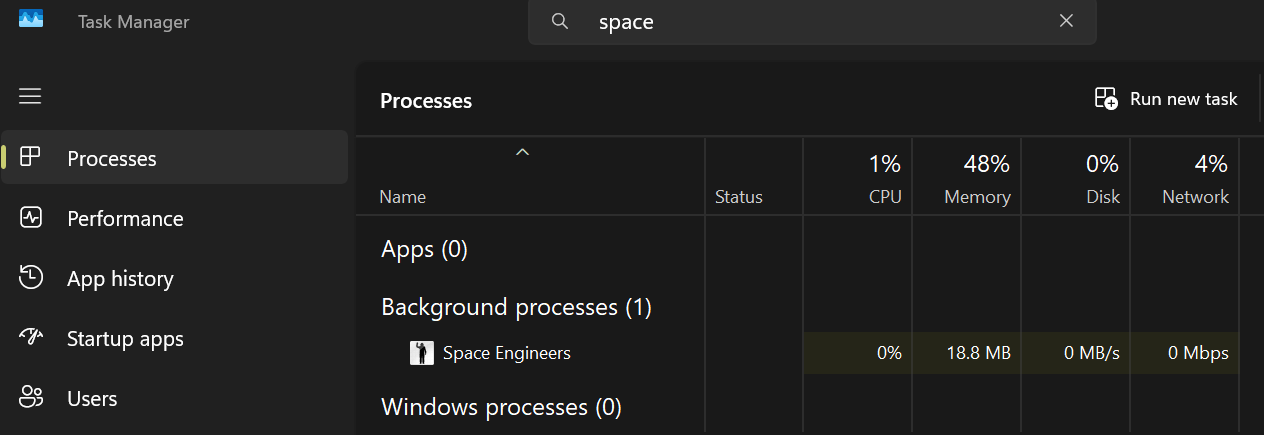

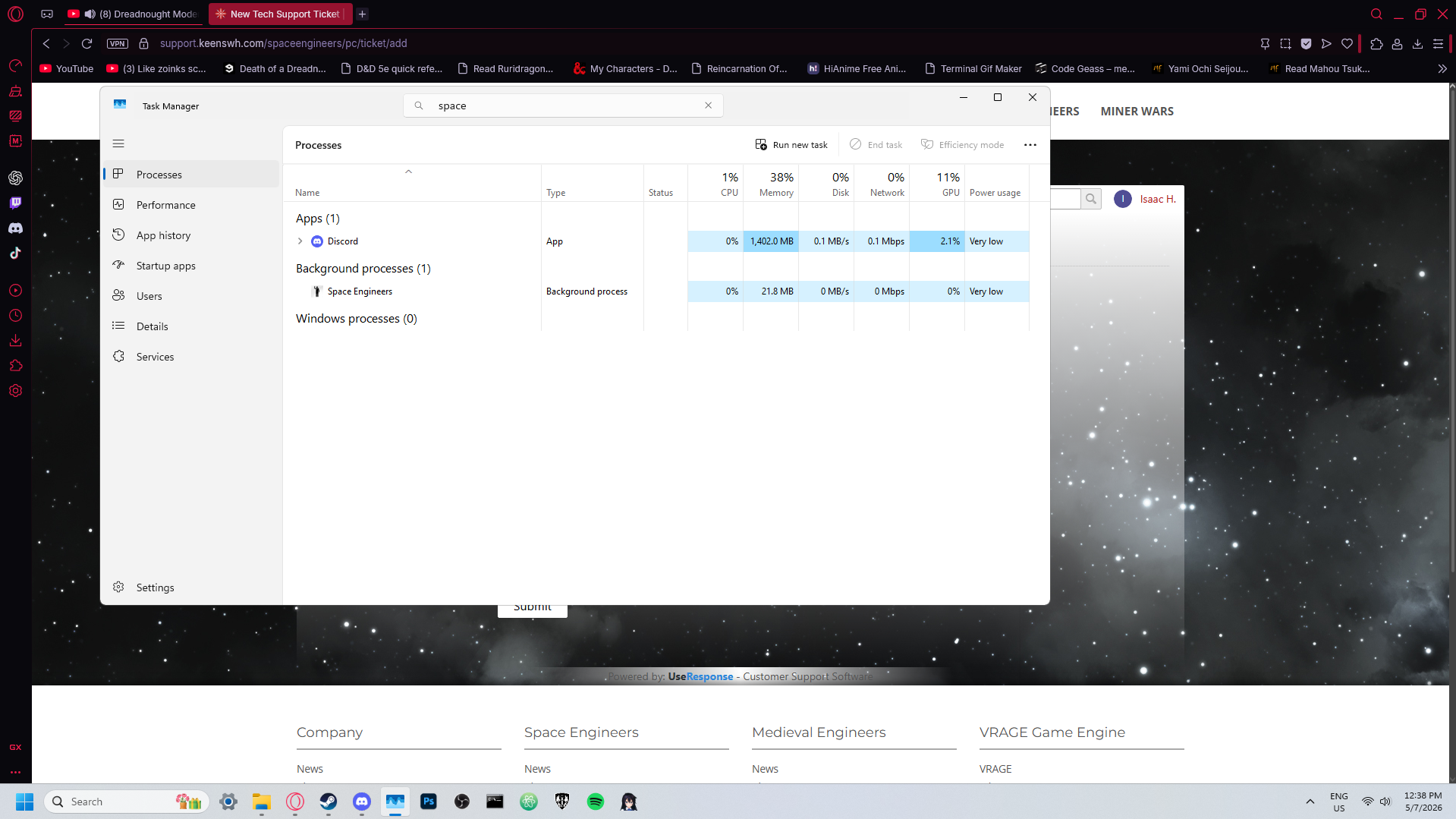
Hello Engineer,
Thank you for reaching out and for the detailed description.
We have identified that this behavior may be related to a recent Windows 11 update (KB5083769). Our QA team experienced the same issue, and removing this update resolved the problem on our side.
As a temporary workaround, you can try the following:
Please note that this is only a workaround, and removing Windows updates may have other implications. We recommend reinstalling the update once a permanent fix is available.
In the meantime, we are continuing to investigate the root cause.
Kind Regards,
Ludmila Danilchenko
Head of Space Engineers QA Department
Hello Engineer,
Thank you for reaching out and for the detailed description.
We have identified that this behavior may be related to a recent Windows 11 update (KB5083769). Our QA team experienced the same issue, and removing this update resolved the problem on our side.
As a temporary workaround, you can try the following:
Please note that this is only a workaround, and removing Windows updates may have other implications. We recommend reinstalling the update once a permanent fix is available.
In the meantime, we are continuing to investigate the root cause.
Kind Regards,
Ludmila Danilchenko
Head of Space Engineers QA Department
Hello!
Thank you for contacting us. Since this is a bug report, I'm moving your ticket to our support page, where our QA team will take care of you.
Kind Regards,
Keen Software House
Hello!
Thank you for contacting us. Since this is a bug report, I'm moving your ticket to our support page, where our QA team will take care of you.
Kind Regards,
Keen Software House
Seems the new Windows 11 Net Framework update from Apr 14 is the main culprit. Not sure if that is something that SE needs to fix or Microsoft.
Right now, the work around to this issue is to roll back your windows before this update and your game should launch properly.
Seems the new Windows 11 Net Framework update from Apr 14 is the main culprit. Not sure if that is something that SE needs to fix or Microsoft.
Right now, the work around to this issue is to roll back your windows before this update and your game should launch properly.
Followup with a bit more info...
Removing the .cfg file doesn't cause SE to generate a new one or present the install options for .NET framework etc.. I originally used the newer experimental .NET framework (10,11???) for potential better performance. When I had problems, I think I may have selected version 4. I had thought to review the choice of .NET, but it now donesn't appear when I now re-install SE.
Is there anyway to forece SE to present the installation options?
Followup with a bit more info...
Removing the .cfg file doesn't cause SE to generate a new one or present the install options for .NET framework etc.. I originally used the newer experimental .NET framework (10,11???) for potential better performance. When I had problems, I think I may have selected version 4. I had thought to review the choice of .NET, but it now donesn't appear when I now re-install SE.
Is there anyway to forece SE to present the installation options?
This is a Windows 11 and AMD related issue. A new Windows 11 update came out recently and all AMD users seem to be the only ones affected. The current workaround is to uninstall the most recent Windows 11 updates until a true fix comes out.
This is a Windows 11 and AMD related issue. A new Windows 11 update came out recently and all AMD users seem to be the only ones affected. The current workaround is to uninstall the most recent Windows 11 updates until a true fix comes out.
Hello Engineer,
Thank you for reaching out and for the detailed description.
We have identified that this behavior may be related to a recent Windows 11 update (KB5083769). Our QA team experienced the same issue, and removing this update resolved the problem on our side.
As a temporary workaround, you can try the following:
Please note that this is only a workaround, and removing Windows updates may have other implications. We recommend reinstalling the update once a permanent fix is available.
In the meantime, we are continuing to investigate the root cause.
Kind Regards,
Ludmila Danilchenko
Head of Space Engineers QA Department
Hello Engineer,
Thank you for reaching out and for the detailed description.
We have identified that this behavior may be related to a recent Windows 11 update (KB5083769). Our QA team experienced the same issue, and removing this update resolved the problem on our side.
As a temporary workaround, you can try the following:
Please note that this is only a workaround, and removing Windows updates may have other implications. We recommend reinstalling the update once a permanent fix is available.
In the meantime, we are continuing to investigate the root cause.
Kind Regards,
Ludmila Danilchenko
Head of Space Engineers QA Department
Hello Zbyněk Skácel,
This issue began with a bad reaction to the Windows .NETFramework update package released on April 14. I reported the same issue several days ago with Steam, Keen, and Microsoft, and am now asking Keen Software House to provide a general progress report to all SE1 players who have complained about the same issue.
Hello Zbyněk Skácel,
This issue began with a bad reaction to the Windows .NETFramework update package released on April 14. I reported the same issue several days ago with Steam, Keen, and Microsoft, and am now asking Keen Software House to provide a general progress report to all SE1 players who have complained about the same issue.
I’m having the same issue. The fix works, but Windows will update again and then you’ll need to delete it again. Hopefully, they can fix it soon.
I’m having the same issue. The fix works, but Windows will update again and then you’ll need to delete it again. Hopefully, they can fix it soon.
I have done the associated troubleshooting for this and related issues to be sure.
I have done the associated troubleshooting for this and related issues to be sure.
I had the same issue, and removing the Update from my Intel i7, RTX4060 Windows 11 pc corrected the issue. Thanks all for the help.
I had the same issue, and removing the Update from my Intel i7, RTX4060 Windows 11 pc corrected the issue. Thanks all for the help.
I can't uninstall KB5083769. It does not appear in the list. When I try to force-uninstall through the command prompt, it says my computer ""Needs"" the update. Hoping for a real fix before the big update.
I can't uninstall KB5083769. It does not appear in the list. When I try to force-uninstall through the command prompt, it says my computer ""Needs"" the update. Hoping for a real fix before the big update.
Hi there,
Uninstalling windows updates didn't help.
Hi there,
Uninstalling windows updates didn't help.
Hello,
Thank you for contacting us. Since this is a bug report, I'm moving your ticket to our support page, where our QA team will take care of you.
Kind Regards,
Keen Software House
Hello,
Thank you for contacting us. Since this is a bug report, I'm moving your ticket to our support page, where our QA team will take care of you.
Kind Regards,
Keen Software House
Hello Tyrel,
Thank you for reaching out to us on the forum, and we sincerely apologize for the issue you’ve been experiencing with the new update.
We’ve a few similar reports described and linked in this thread where players experienced the same issue;
Crash post ECO 2 update | Space Engineers PC Support
To confirm whether this is the same issue or something different, could you please share the game log file from the time the issue occurred on your side?
Kind Regards,
Keen Software House: QA Department
Hello Tyrel,
Thank you for reaching out to us on the forum, and we sincerely apologize for the issue you’ve been experiencing with the new update.
We’ve a few similar reports described and linked in this thread where players experienced the same issue;
Crash post ECO 2 update | Space Engineers PC Support
To confirm whether this is the same issue or something different, could you please share the game log file from the time the issue occurred on your side?
Kind Regards,
Keen Software House: QA Department
I believe i found the file but wont let me send it do i need to compress it to a zip file?
I believe i found the file but wont let me send it do i need to compress it to a zip file?
Hello Engineer,
Can you please provide us more information?
It would be helpful if you can describe whole process when you are trying to start the game, as well as share us a log file from any of those affected sessions/attempts.
You can access your log files by typing %appdata% into your Windows search bar and you will be redirected to the hidden Roaming folder. After that just follow: \Roaming\SpaceEngineers.
Thank you in advance.
Kind Regards,
Keen Software House: QA Department
Hello Engineer,
Can you please provide us more information?
It would be helpful if you can describe whole process when you are trying to start the game, as well as share us a log file from any of those affected sessions/attempts.
You can access your log files by typing %appdata% into your Windows search bar and you will be redirected to the hidden Roaming folder. After that just follow: \Roaming\SpaceEngineers.
Thank you in advance.
Kind Regards,
Keen Software House: QA Department
I'm having this issue and I don't have KB5083769 installed. I've attached a screenshot showing everything available in the uninstall updates section
I'm having this issue and I don't have KB5083769 installed. I've attached a screenshot showing everything available in the uninstall updates section
i think these are the files
i think these are the files
I literally load up my PC. Open Steam and select Space Engineers > "Play" button. Only things running are my GPU and logitec in the background.
I literally load up my PC. Open Steam and select Space Engineers > "Play" button. Only things running are my GPU and logitec in the background.
2026-05-07 03:55:30.084 - Thread: 1 -> Log Started
2026-05-07 03:55:30.084 - Thread: 1 -> Timezone (local - UTC): -5h
2026-05-07 03:55:30.084 - Thread: 1 -> App Version: 01_209_020
2026-05-07 03:55:30.088 - Thread: 1 -> Is official: True [NO][IS][NAMP]
2026-05-07 03:55:30.088 - Thread: 1 -> Branch / Sandbox: SVN
2026-05-07 03:55:30.088 - Thread: 1 -> Client Build Number: 1
2026-05-07 03:55:30.088 - Thread: 1 -> Server Build Number: 0
2026-05-07 03:55:30.088 - Thread: 1 -> Environment.ProcessorCount: 16
2026-05-07 03:55:30.120 - Thread: 1 -> Environment.OSVersion: Microsoft Windows 11 Home (Microsoft Windows NT 10.0.26200.0)
2026-05-07 03:55:30.120 - Thread: 1 -> Environment.CommandLine: F:\SteamLibrary\steamapps\common\SpaceEngineers\Bin64\SpaceEngineers.exe
2026-05-07 03:55:30.120 - Thread: 1 -> Environment.Is64BitProcess: True
2026-05-07 03:55:30.120 - Thread: 1 -> Environment.Is64BitOperatingSystem: True
2026-05-07 03:55:30.120 - Thread: 1 -> Environment.Version: .NET Framework 4.8.9325.0
2026-05-07 03:55:30.120 - Thread: 1 -> Environment.CurrentDirectory: F:\SteamLibrary\steamapps\common\SpaceEngineers\Bin64
2026-05-07 03:55:30.123 - Thread: 1 -> CPU Info: AMD Ryzen 7 7800X3D 8-Core Processor
2026-05-07 03:55:30.123 - Thread: 1 -> Default Culture:
2026-05-07 03:55:30.123 - Thread: 1 -> Default UI Culture:
2026-05-07 03:55:30.123 - Thread: 1 -> MyConfig.Load() - START
2026-05-07 03:55:30.123 - Thread: 1 -> Path: C:\Users\Steves PC\AppData\Roaming\SpaceEngineers\SpaceEngineers.cfg
2026-05-07 03:55:30.123 - Thread: 1 -> Config file not found! C:\Users\Steves PC\AppData\Roaming\SpaceEngineers\SpaceEngineers.cfg
2026-05-07 03:55:30.123 - Thread: 1 -> NewNewGameScreen: False
2026-05-07 03:55:30.123 - Thread: 1 -> MyConfig.Load() - END
2026-05-07 03:55:30.084 - Thread: 1 -> Log Started
2026-05-07 03:55:30.084 - Thread: 1 -> Timezone (local - UTC): -5h
2026-05-07 03:55:30.084 - Thread: 1 -> App Version: 01_209_020
2026-05-07 03:55:30.088 - Thread: 1 -> Is official: True [NO][IS][NAMP]
2026-05-07 03:55:30.088 - Thread: 1 -> Branch / Sandbox: SVN
2026-05-07 03:55:30.088 - Thread: 1 -> Client Build Number: 1
2026-05-07 03:55:30.088 - Thread: 1 -> Server Build Number: 0
2026-05-07 03:55:30.088 - Thread: 1 -> Environment.ProcessorCount: 16
2026-05-07 03:55:30.120 - Thread: 1 -> Environment.OSVersion: Microsoft Windows 11 Home (Microsoft Windows NT 10.0.26200.0)
2026-05-07 03:55:30.120 - Thread: 1 -> Environment.CommandLine: F:\SteamLibrary\steamapps\common\SpaceEngineers\Bin64\SpaceEngineers.exe
2026-05-07 03:55:30.120 - Thread: 1 -> Environment.Is64BitProcess: True
2026-05-07 03:55:30.120 - Thread: 1 -> Environment.Is64BitOperatingSystem: True
2026-05-07 03:55:30.120 - Thread: 1 -> Environment.Version: .NET Framework 4.8.9325.0
2026-05-07 03:55:30.120 - Thread: 1 -> Environment.CurrentDirectory: F:\SteamLibrary\steamapps\common\SpaceEngineers\Bin64
2026-05-07 03:55:30.123 - Thread: 1 -> CPU Info: AMD Ryzen 7 7800X3D 8-Core Processor
2026-05-07 03:55:30.123 - Thread: 1 -> Default Culture:
2026-05-07 03:55:30.123 - Thread: 1 -> Default UI Culture:
2026-05-07 03:55:30.123 - Thread: 1 -> MyConfig.Load() - START
2026-05-07 03:55:30.123 - Thread: 1 -> Path: C:\Users\Steves PC\AppData\Roaming\SpaceEngineers\SpaceEngineers.cfg
2026-05-07 03:55:30.123 - Thread: 1 -> Config file not found! C:\Users\Steves PC\AppData\Roaming\SpaceEngineers\SpaceEngineers.cfg
2026-05-07 03:55:30.123 - Thread: 1 -> NewNewGameScreen: False
2026-05-07 03:55:30.123 - Thread: 1 -> MyConfig.Load() - END
2026-05-07 20:50:12.954 - Thread: 1 -> Log Started
2026-05-07 20:50:12.955 - Thread: 1 -> Timezone (local - UTC): -5h
2026-05-07 20:50:12.955 - Thread: 1 -> App Version: 01_209_022
2026-05-07 20:50:13.017 - Thread: 1 -> Is official: True [NO][IS][NAMP]
2026-05-07 20:50:13.018 - Thread: 1 -> Branch / Sandbox: SVN
2026-05-07 20:50:13.018 - Thread: 1 -> Client Build Number: 1
2026-05-07 20:50:13.018 - Thread: 1 -> Server Build Number: 0
2026-05-07 20:50:13.018 - Thread: 1 -> Environment.ProcessorCount: 16
2026-05-07 20:50:13.056 - Thread: 1 -> Environment.OSVersion: Microsoft Windows 11 Home (Microsoft Windows NT 10.0.26200.0)
2026-05-07 20:50:13.057 - Thread: 1 -> Environment.CommandLine: F:\SteamLibrary\steamapps\common\SpaceEngineers\Bin64\SpaceEngineers.exe
2026-05-07 20:50:13.057 - Thread: 1 -> Environment.Is64BitProcess: True
2026-05-07 20:50:13.057 - Thread: 1 -> Environment.Is64BitOperatingSystem: True
2026-05-07 20:50:13.057 - Thread: 1 -> Environment.Version: .NET Framework 4.8.9325.0
2026-05-07 20:50:13.057 - Thread: 1 -> Environment.CurrentDirectory: F:\SteamLibrary\steamapps\common\SpaceEngineers\Bin64
2026-05-07 20:50:13.061 - Thread: 1 -> CPU Info: AMD Ryzen 7 7800X3D 8-Core Processor
2026-05-07 20:50:13.061 - Thread: 1 -> Default Culture:
2026-05-07 20:50:13.061 - Thread: 1 -> Default UI Culture:
2026-05-07 20:50:13.068 - Thread: 1 -> MyConfig.Load() - START
2026-05-07 20:50:13.071 - Thread: 1 -> Path: C:\Users\Steves PC\AppData\Roaming\SpaceEngineers\SpaceEngineers.cfg
2026-05-07 20:50:13.071 - Thread: 1 -> Config file not found! C:\Users\Steves PC\AppData\Roaming\SpaceEngineers\SpaceEngineers.cfg
2026-05-07 20:50:13.072 - Thread: 1 -> NewNewGameScreen: False
2026-05-07 20:50:13.074 - Thread: 1 -> MyConfig.Load() - END
2026-05-07 20:50:12.954 - Thread: 1 -> Log Started
2026-05-07 20:50:12.955 - Thread: 1 -> Timezone (local - UTC): -5h
2026-05-07 20:50:12.955 - Thread: 1 -> App Version: 01_209_022
2026-05-07 20:50:13.017 - Thread: 1 -> Is official: True [NO][IS][NAMP]
2026-05-07 20:50:13.018 - Thread: 1 -> Branch / Sandbox: SVN
2026-05-07 20:50:13.018 - Thread: 1 -> Client Build Number: 1
2026-05-07 20:50:13.018 - Thread: 1 -> Server Build Number: 0
2026-05-07 20:50:13.018 - Thread: 1 -> Environment.ProcessorCount: 16
2026-05-07 20:50:13.056 - Thread: 1 -> Environment.OSVersion: Microsoft Windows 11 Home (Microsoft Windows NT 10.0.26200.0)
2026-05-07 20:50:13.057 - Thread: 1 -> Environment.CommandLine: F:\SteamLibrary\steamapps\common\SpaceEngineers\Bin64\SpaceEngineers.exe
2026-05-07 20:50:13.057 - Thread: 1 -> Environment.Is64BitProcess: True
2026-05-07 20:50:13.057 - Thread: 1 -> Environment.Is64BitOperatingSystem: True
2026-05-07 20:50:13.057 - Thread: 1 -> Environment.Version: .NET Framework 4.8.9325.0
2026-05-07 20:50:13.057 - Thread: 1 -> Environment.CurrentDirectory: F:\SteamLibrary\steamapps\common\SpaceEngineers\Bin64
2026-05-07 20:50:13.061 - Thread: 1 -> CPU Info: AMD Ryzen 7 7800X3D 8-Core Processor
2026-05-07 20:50:13.061 - Thread: 1 -> Default Culture:
2026-05-07 20:50:13.061 - Thread: 1 -> Default UI Culture:
2026-05-07 20:50:13.068 - Thread: 1 -> MyConfig.Load() - START
2026-05-07 20:50:13.071 - Thread: 1 -> Path: C:\Users\Steves PC\AppData\Roaming\SpaceEngineers\SpaceEngineers.cfg
2026-05-07 20:50:13.071 - Thread: 1 -> Config file not found! C:\Users\Steves PC\AppData\Roaming\SpaceEngineers\SpaceEngineers.cfg
2026-05-07 20:50:13.072 - Thread: 1 -> NewNewGameScreen: False
2026-05-07 20:50:13.074 - Thread: 1 -> MyConfig.Load() - END
I have not uninstalled the game. deleted all space engineers folders from my pc. Uninstalled Steam > Reinstalled steam > reinstalled Space Engineers. We I try to start the game it will not start. My PC thinks its running but nothing happens.
I have not uninstalled the game. deleted all space engineers folders from my pc. Uninstalled Steam > Reinstalled steam > reinstalled Space Engineers. We I try to start the game it will not start. My PC thinks its running but nothing happens.
Hello,
Thank you for contacting us. Since this is a bug report, I'm moving your ticket to our support page, where our QA team will take care of you.
Kind Regards,
Keen Software House
Hello,
Thank you for contacting us. Since this is a bug report, I'm moving your ticket to our support page, where our QA team will take care of you.
Kind Regards,
Keen Software House
Hello Tyrel,
Thank you for sharing the logs.
After reviewing them, it appears that the game is unable to find the configuration (CFG) file required to launch properly. Could you please check whether you have a SpaceEngineers.cfg file in the AppData\Roaming\SpaceEngineers folder?
If the file is not there, could you please try performing a 'clean installation' of the game. Although you have already reinstalled the game, a 'clean installation' is a more thorough process that ensures all remnants are removed before reinstallation.
To perform a clean installation, please follow these steps:
After completing the above steps, reinstall the game through Steam and check if the issue persists. If the issue is resolved, you can move your Saves and Blueprints folders back to \AppData\Roaming\SpaceEngineers.
If the issue continues, please check again whether the SpaceEngineers.cfg file is present after reinstalling. If it is there, could you please send the file to us so we can investigate the issue further?
Kind Regards,
Keen Software House: QA Department
Hello Tyrel,
Thank you for sharing the logs.
After reviewing them, it appears that the game is unable to find the configuration (CFG) file required to launch properly. Could you please check whether you have a SpaceEngineers.cfg file in the AppData\Roaming\SpaceEngineers folder?
If the file is not there, could you please try performing a 'clean installation' of the game. Although you have already reinstalled the game, a 'clean installation' is a more thorough process that ensures all remnants are removed before reinstallation.
To perform a clean installation, please follow these steps:
After completing the above steps, reinstall the game through Steam and check if the issue persists. If the issue is resolved, you can move your Saves and Blueprints folders back to \AppData\Roaming\SpaceEngineers.
If the issue continues, please check again whether the SpaceEngineers.cfg file is present after reinstalling. If it is there, could you please send the file to us so we can investigate the issue further?
Kind Regards,
Keen Software House: QA Department
Right I've managed to uninstall KB5083769, to even make it appear in the uninstall updates list I had to remove KB5083631 and KB5082417. I can now launch the game at any time, not just immediately after booting . Hopefully this helps others as a temporary solution untill keen fixes it properly
Right I've managed to uninstall KB5083769, to even make it appear in the uninstall updates list I had to remove KB5083631 and KB5082417. I can now launch the game at any time, not just immediately after booting . Hopefully this helps others as a temporary solution untill keen fixes it properly
For the Record I have tried reinstalling the game, reinstalling and rolling back my graphics drivers, reinstalling Windows, and unsubscribing from all mods.
For the Record I have tried reinstalling the game, reinstalling and rolling back my graphics drivers, reinstalling Windows, and unsubscribing from all mods.
Yeah, sometimes I have to restart my machine to get it to come up. It starts a zombie process that just sits there and does nothing. It doesn't happen all the time, but 2-3 times a week for me.
Yeah, sometimes I have to restart my machine to get it to come up. It starts a zombie process that just sits there and does nothing. It doesn't happen all the time, but 2-3 times a week for me.
Hello Engineer,
Thank you for reaching out. We're sorry to hear you're experiencing issues.
In order for us to be able to investigate this issue better, could you please share a log file from one of the affected game sessions?
You can access your log files by typing %appdata% into your Windows search bar and you will be redirected to the hidden Roaming folder. After that just follow: \Roaming\SpaceEngineers.
Thank you in advance.
Kind Regards,
Keen Software House: QA Department
Hello Engineer,
Thank you for reaching out. We're sorry to hear you're experiencing issues.
In order for us to be able to investigate this issue better, could you please share a log file from one of the affected game sessions?
You can access your log files by typing %appdata% into your Windows search bar and you will be redirected to the hidden Roaming folder. After that just follow: \Roaming\SpaceEngineers.
Thank you in advance.
Kind Regards,
Keen Software House: QA Department
Hello Engineer,
Thank you for reaching out. We're sorry to hear you're experiencing issues.
In order for us to be able to investigate this issue better, could you please share a log file from one of the affected game sessions?
You can access your log files by typing %appdata% into your Windows search bar and you will be redirected to the hidden Roaming folder. After that just follow: \Roaming\SpaceEngineers.
Thank you in advance.
Kind Regards,
Keen Software House: QA Department
Hello Engineer,
Thank you for reaching out. We're sorry to hear you're experiencing issues.
In order for us to be able to investigate this issue better, could you please share a log file from one of the affected game sessions?
You can access your log files by typing %appdata% into your Windows search bar and you will be redirected to the hidden Roaming folder. After that just follow: \Roaming\SpaceEngineers.
Thank you in advance.
Kind Regards,
Keen Software House: QA Department
I have the same issue. On an intel processor, the workaround of uninstalling the security update also does not work. I currently can't get SE to launch into the game at all. KEEEEENNNNN!!!! Fix your stuff!!!
I have the same issue. On an intel processor, the workaround of uninstalling the security update also does not work. I currently can't get SE to launch into the game at all. KEEEEENNNNN!!!! Fix your stuff!!!
Hello,
Thanks for picking this up I have attached as many reports as I could so you are able to get to the bottom of this
Kind regards
Hello,
Thanks for picking this up I have attached as many reports as I could so you are able to get to the bottom of this
Kind regards
Hello,
Thanks for picking this up I have attached as many reports as I could so you are able to get to the bottom of this
Kind regards
Hello,
Thanks for picking this up I have attached as many reports as I could so you are able to get to the bottom of this
Kind regards
i did what you said but still doesn't load at all
i did what you said but still doesn't load at all
I think I fixed it. I have to turn off "Background Intelligent Transfer Service" in services and then restart the PC. And it always starts up again. I am on the latest version of Windows.
I think I fixed it. I have to turn off "Background Intelligent Transfer Service" in services and then restart the PC. And it always starts up again. I am on the latest version of Windows.
So I was having the same issue but I wasn't seeing the Windows Update that has been mentioned in previous posts. However I fixed the issue whereby the game would not launch by disabling/stopping the service "Background Intelligent Transfer Service" (BITS).
On your Windows 11 desktop, press ALT + R
Then type "services.msc" then click on OK
Find "Background Intelligent Transfer Service" and stop/disable it.
I had an issue where it couldn't stop it. As it is a delayed service, reboot your machine and as soon as it boots into window 11 follow the above steps to stop/disable the service before it starts. Since doing that I have not had the issue. You may need to do this a couple of times for it to remember your settings This fixed the issue for me and I didn't have to uninstall any windows security updates. I hope this works for you.
So I was having the same issue but I wasn't seeing the Windows Update that has been mentioned in previous posts. However I fixed the issue whereby the game would not launch by disabling/stopping the service "Background Intelligent Transfer Service" (BITS).
On your Windows 11 desktop, press ALT + R
Then type "services.msc" then click on OK
Find "Background Intelligent Transfer Service" and stop/disable it.
I had an issue where it couldn't stop it. As it is a delayed service, reboot your machine and as soon as it boots into window 11 follow the above steps to stop/disable the service before it starts. Since doing that I have not had the issue. You may need to do this a couple of times for it to remember your settings This fixed the issue for me and I didn't have to uninstall any windows security updates. I hope this works for you.
Hi
Thanks for getting back to me. It seems I have the same issue that a number of users have reported on Discord, namely that it's a recent Windows Update patch that is preventing the game from starting. I have uninstalled the two patches the system installed on 9th May and disabled WIndows Updates and now the game starts OK. The two patches concerned are: KB5083631 and KB5082417. I think it's the latter patch that's the real issue, but some other users mentioned both so I uninstalled both.
I've attached a log file. Every time the program failed to start it did so after reading the configuration and didn't log anything else.
Regards
David
Hi
Thanks for getting back to me. It seems I have the same issue that a number of users have reported on Discord, namely that it's a recent Windows Update patch that is preventing the game from starting. I have uninstalled the two patches the system installed on 9th May and disabled WIndows Updates and now the game starts OK. The two patches concerned are: KB5083631 and KB5082417. I think it's the latter patch that's the real issue, but some other users mentioned both so I uninstalled both.
I've attached a log file. Every time the program failed to start it did so after reading the configuration and didn't log anything else.
Regards
David
still doing the same thing
still doing the same thing
Replies have been locked on this page!