


Event controller actions "Landing Gear Locked" and "Magnetic Lock Ready" are swapped
Won't Fix
Event controller actions "Landing Gear Locked" and "Magnetic Lock Ready" seems to be swapped. When "Landing Gear Locked" is set, it will behave as "Magnetic Lock Ready" should and vice versa.
I don't know if this is an issue only in English or if it's present in all languages.
(Also, "Landing Gear Locked" would worth renaming to "Magnetic Lock Locked", as it's clearer, considering both landing gears and magnetic locks can be selected here. But this is another topic.)
Files:
2026-01-24_20h5...
 I have the same bug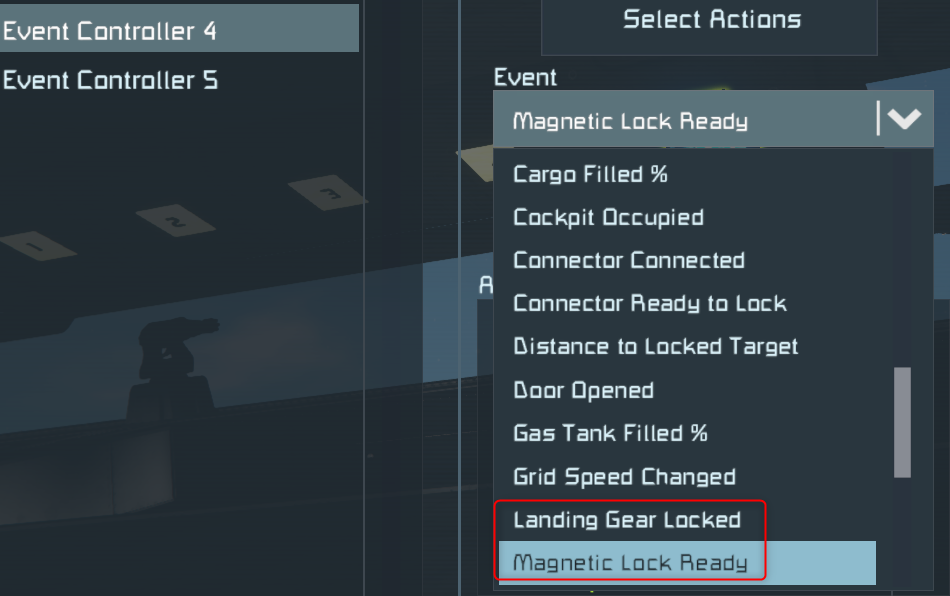
You can't vote. Please authorize!
Hello Engineer,
Thank you for reaching out to us on the forum!
From our testing, the behavior you’re seeing is expected and not swapped. In the Event Controller, the event is evaluated on the block you explicitly select in the controller settings (the “watched” block). So:
- If you select a Magnetic Plate as the watched block and use “Landing Gear Locked” as the condition, the event will trigger based on the Magnetic Plate’s locked state;
- If you select a Landing Gear as the watched block and use “Magnetic Lock Ready”, the event will trigger based on the Landing Gear’s ready-to-lock state.
Because of this, a setup action depending on condition will only change when the selected block matches the chosen condition. It will not trigger for the other state (e.g. “ready to connect” vs. “locked”).
If you still believe the behavior is incorrect or confusing in your specific setup, could you please send us a minimal blueprint or save file that reproduces the issue? That would help us a lot to investigate this issue further.
Kind Regards,
Keen Software House
QA Department
Hello Engineer,
Thank you for reaching out to us on the forum!
From our testing, the behavior you’re seeing is expected and not swapped. In the Event Controller, the event is evaluated on the block you explicitly select in the controller settings (the “watched” block). So:
- If you select a Magnetic Plate as the watched block and use “Landing Gear Locked” as the condition, the event will trigger based on the Magnetic Plate’s locked state;
- If you select a Landing Gear as the watched block and use “Magnetic Lock Ready”, the event will trigger based on the Landing Gear’s ready-to-lock state.
Because of this, a setup action depending on condition will only change when the selected block matches the chosen condition. It will not trigger for the other state (e.g. “ready to connect” vs. “locked”).
If you still believe the behavior is incorrect or confusing in your specific setup, could you please send us a minimal blueprint or save file that reproduces the issue? That would help us a lot to investigate this issue further.
Kind Regards,
Keen Software House
QA Department
Hello Engineer,
As there has been no reply to this thread in some time, we will close it. If you're experiencing this issue, please create a new thread.
Kind regards,
Keen Software House: QA Department
Hello Engineer,
As there has been no reply to this thread in some time, we will close it. If you're experiencing this issue, please create a new thread.
Kind regards,
Keen Software House: QA Department
Replies have been locked on this page!